How to add other bank accounts and sign up a DBS business account in the KPay app?
28 November 2024
5 min read
KPay Editorial Team
Making the complex sides of financial management, business operations and digital transformation simple. We share practical tips and local stories to help you run your business smarter and grow faster.
What is the "Connect to Bank" feature?
The "Connect to Bank" feature allows merchants to connect bank accounts provided by third-party financial institutions to the KPay payment management platform, offering a more comprehensive banking service. Through this feature, merchants can freely choose to pay various expense bills using different bank accounts within the KPay App, while also being able to centrally review the inflow and outflow records as well as data analysis reports of multiple bank accounts, enhancing the efficiency of payment management.
In the initial phase, the "Connect to Bank" feature supports linking accounts from DBS Bank (Hong Kong), with plans to support more third-party business accounts soon.
How to apply for a DBS bank account via the KPay app
Step 1: Click "I don't have a DBS bank account" on the "Pay-Out" page.
Step 2: Fill in the relevant information and select your preferred contact time, then click “Confirm.”
Step 3: Our customer service team will contact you as soon as possible to complete your application after receiving it.
How to add a DBS bank account in the KPay app
Step 1: Click "Add DBS account" on the "Pay-Out" page.
Step 2: Fill in the basic banking and contact information, and choose a suitable contact time.
Step 3: Our customer service team will contact you promptly to complete the connection process after receiving your application.
How to access insights for connected business accounts
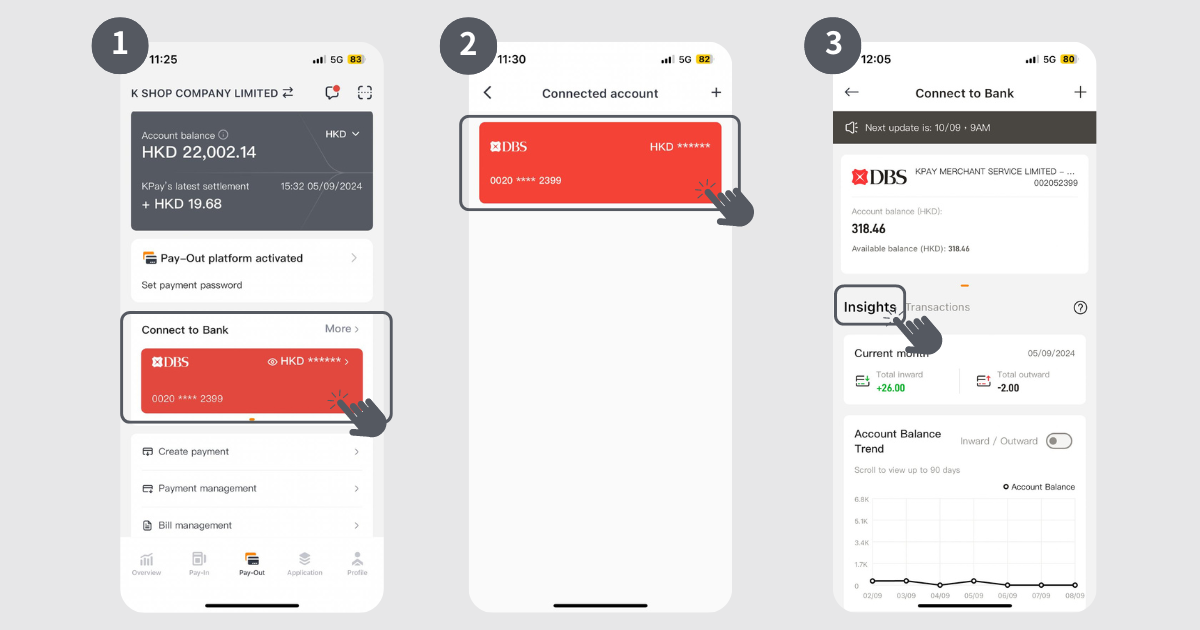
Step 1: Click on the DBS account in the "Connect to Bank" section on the "Pay-Out" page.
Step 2: Select the connected bank account to access the "Connect to Bank" page.
Step 3: Click on "Insights" to view the total expenses and income for the current month, as well as inflow data for the past 90 days.
How to access transactions record for connected business accounts
Step 1: Click on the DBS account in the "Connect to Bank" section on the "Pay-Out" page.
Step 2: Select the connected bank account to access the "Connect to Bank" page.
Step 3: Click "Transactions" to view all expenses, income, and KPay inflow records for the account.
How to search for specific transaction records
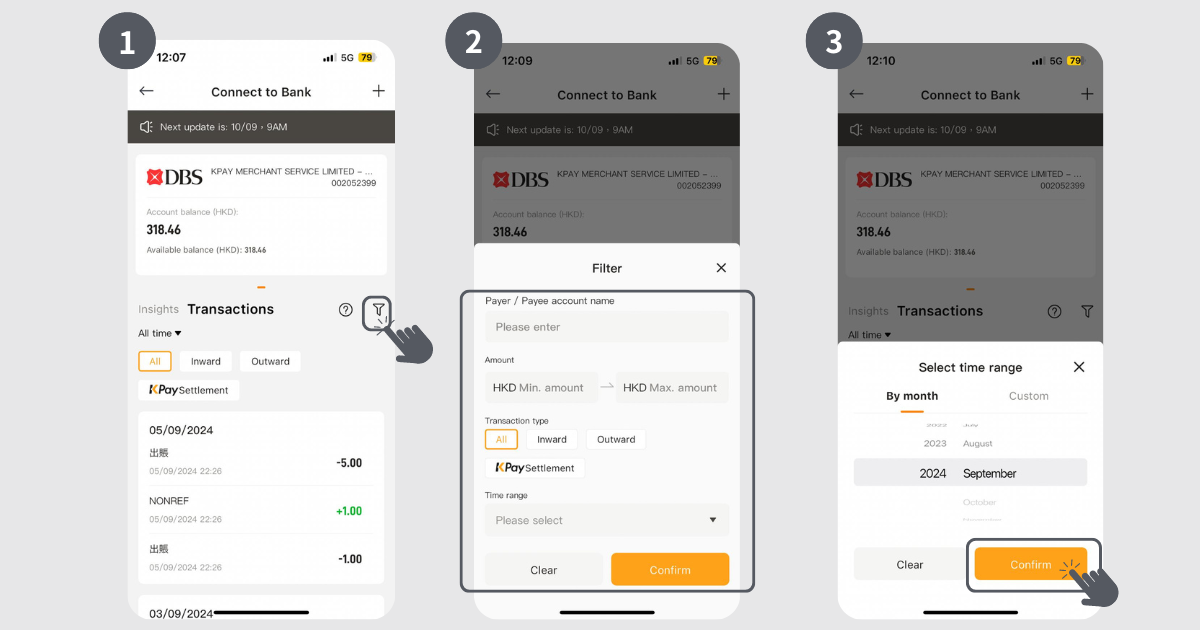
Step 1: Click on the funnel icon in the upper right corner to set filter conditions.
Step 2: Enter the filter conditions.
Step 3: Select the time range and click "Confirm," or click "Clear" to re-enter the filter conditions.
Step 4: The system will display the relevant transaction records based on the entered filter conditions.