Making the complex sides of financial management, business operations and digital transformation simple. We share practical tips and local stories to help you run your business smarter and grow faster.
The “Payee management” feature on the KPay platform allows users to efficiently add payees, manage transaction records, and select frequent payees, eliminating the need to re-enter details for each bill payment. This guide will show you how to create, manage, and edit payees, as well as export transaction records.
How to add a payee?
Step 1: Log in to the KPay App and click "Payee management" on the "Pay-Out" page.
Step 2: Click the "+" icon in the top right corner.
Step 3: Select "Business" or "Personal" as the payee type.
Step 4: Enter the required payee details and click "Create payee."
Bank/country of the payee:
Supported countries/region
Australia
Mexico
South Africa
Malaysia
South Korea
Japan
Thailand
Philippines
UAE
Hong Kong SAR
USA
UK
New Zealand
Singapore
Account currency type:
Type of account currency
AUD
JPY
THB
PHP
EUR
HKD
KRW
MYR
AED
MXN
CNY
NZD
SGD
GBP
USD
Payment methods:
Supports local transfers and global remittances
Local transfers
Global remittances
• FPS
• ACH
• RTGS
• SWIFT
SWIFT
Bank code and account number
Account name
"Business" or "individual" name and country/region
Step 5: Once the payee is created, you can choose "Pay this payee" to make a payment, "Create new payee" to add another, or "Return to payee list" to exit.
How to edit or delete a payee?
Edit a payee
Step 1: Log in to the KPay App and click "Payee management" on the "Pay-Out" page.
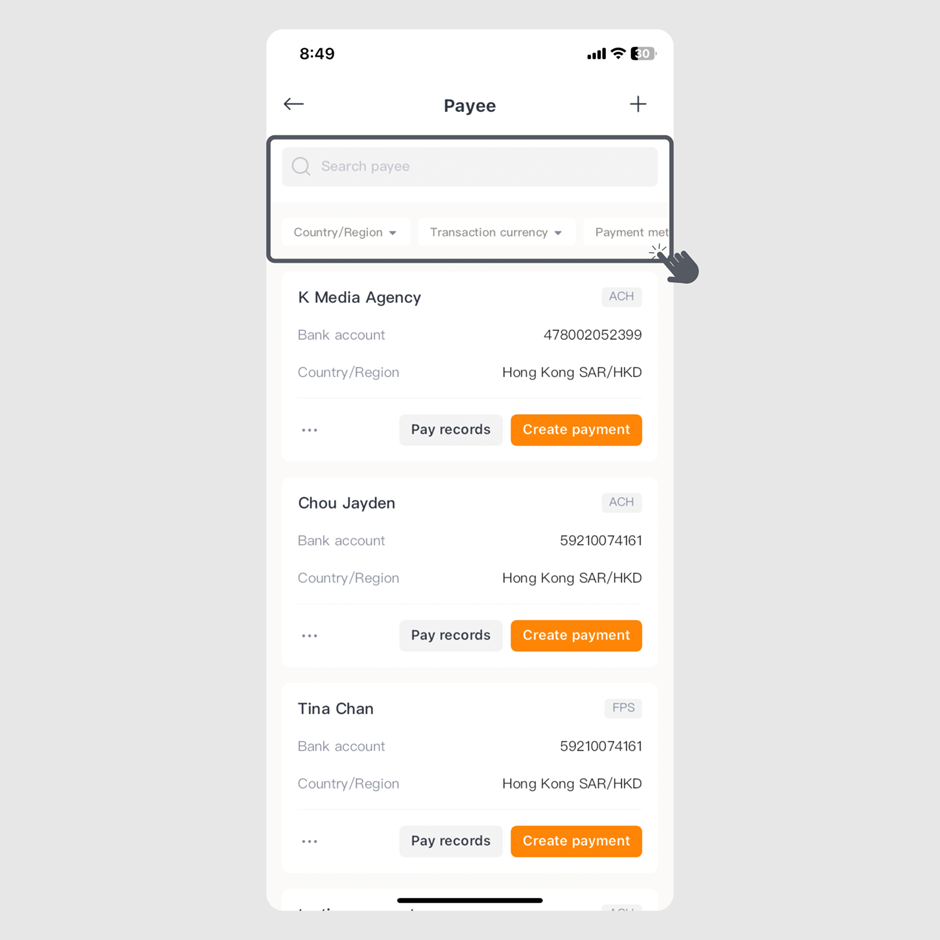
Step 2: Enter the payee's name in the search bar or scroll to select the payee card.
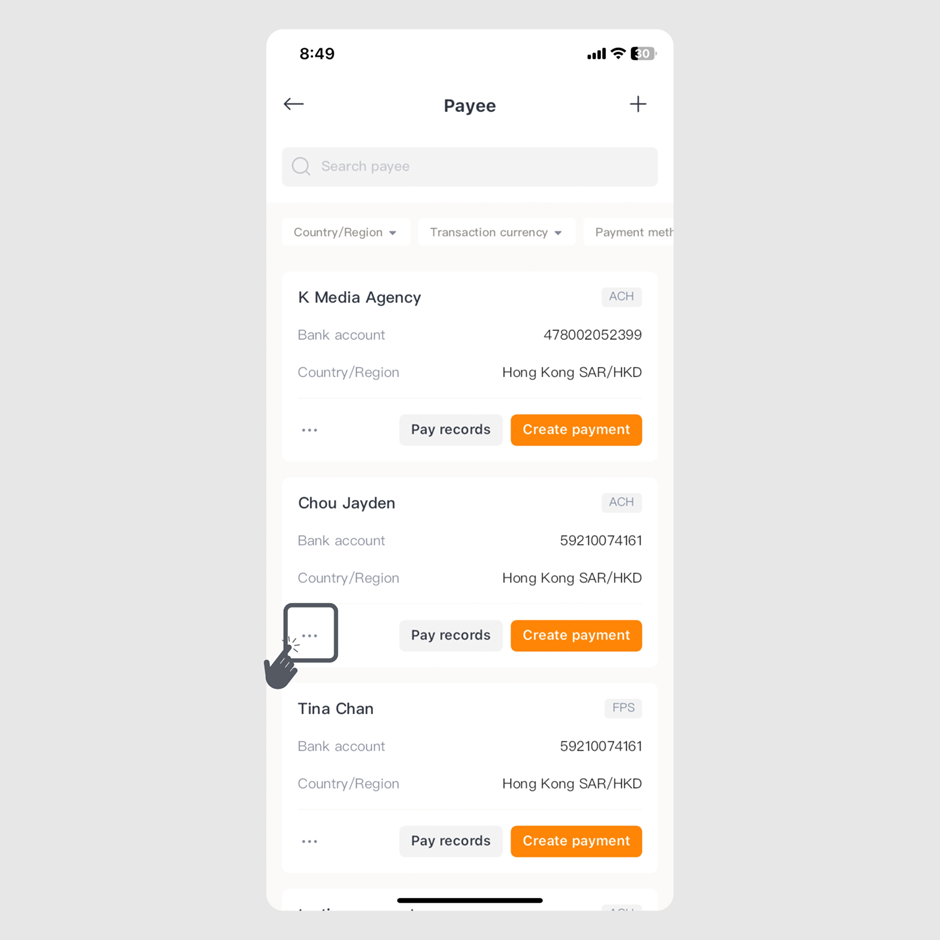
Step 3: Click the "..." icon on the bottom left of the payee card.
Step 4: Click "Edit".
Step 5: Enter the changes and click "Confirm" to update.
Delete a payee
Step 1: Log in to the KPay App and click "Payee management" on the "Pay-Out" page.
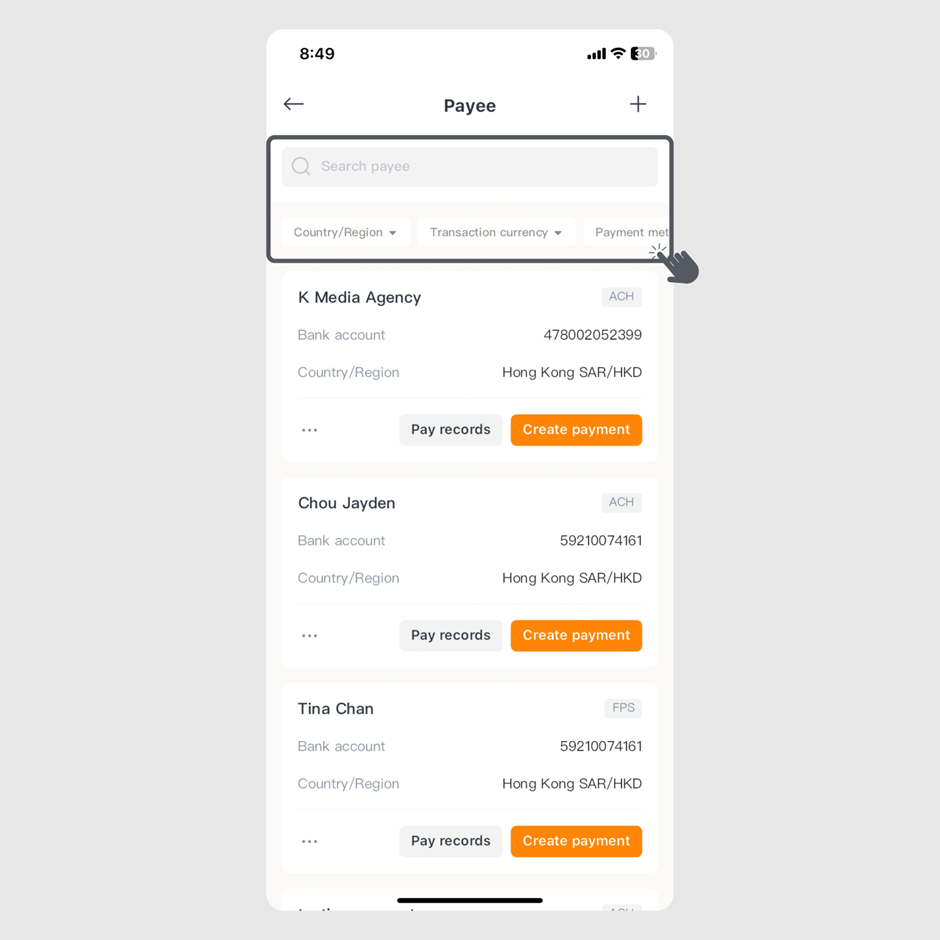
Step 2: Enter the payee's name in the search bar or scroll to select the payee card.
Step 3: Click the "..." icon on the bottom left of the payee card.
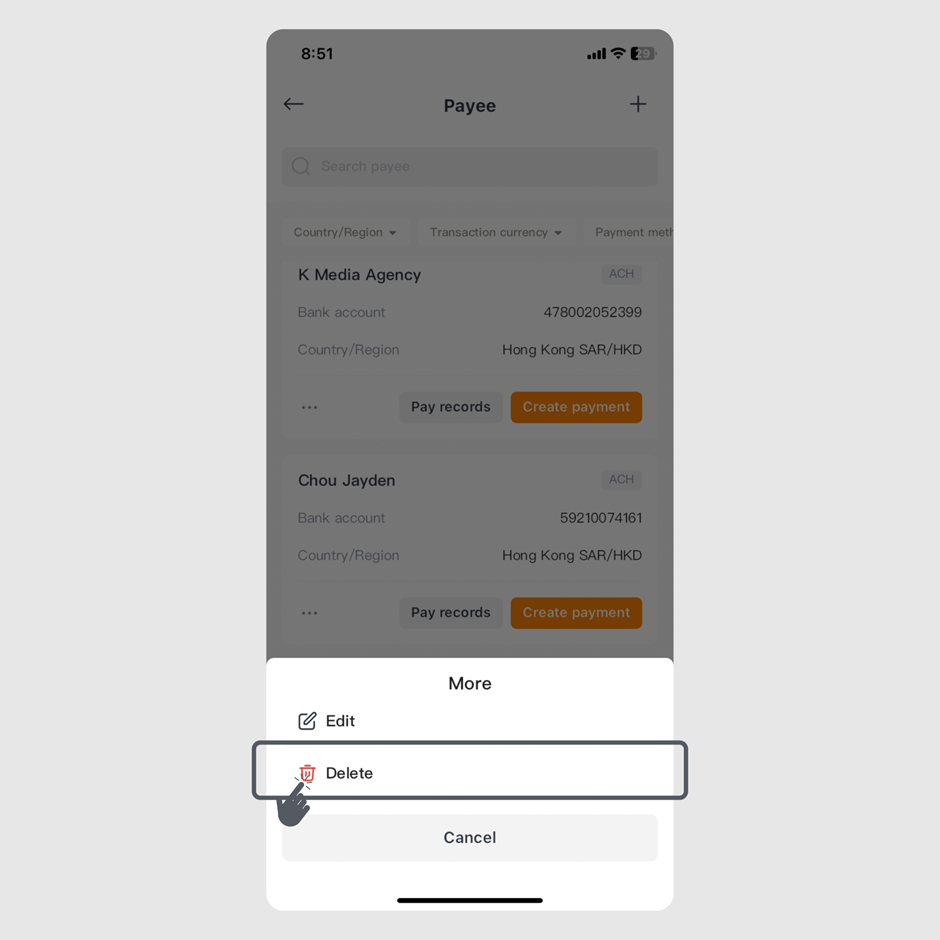
Step 4: Click "Delete" to remove the payee.
How to search / view / export the transaction records of payees?
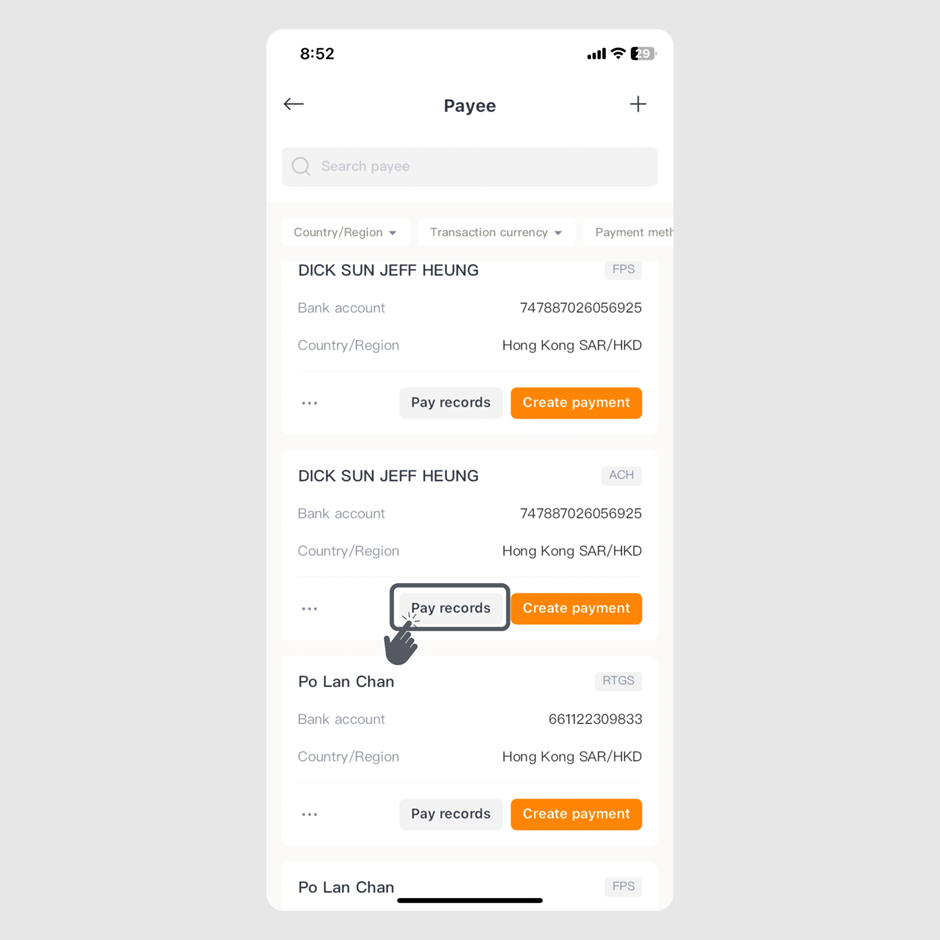
Step 1: Log in to the KPay App and click "Payee management" on the "Pay-Out" page.
Step 2: Select the payee and click "Pay records" at the bottom right of the payee details.
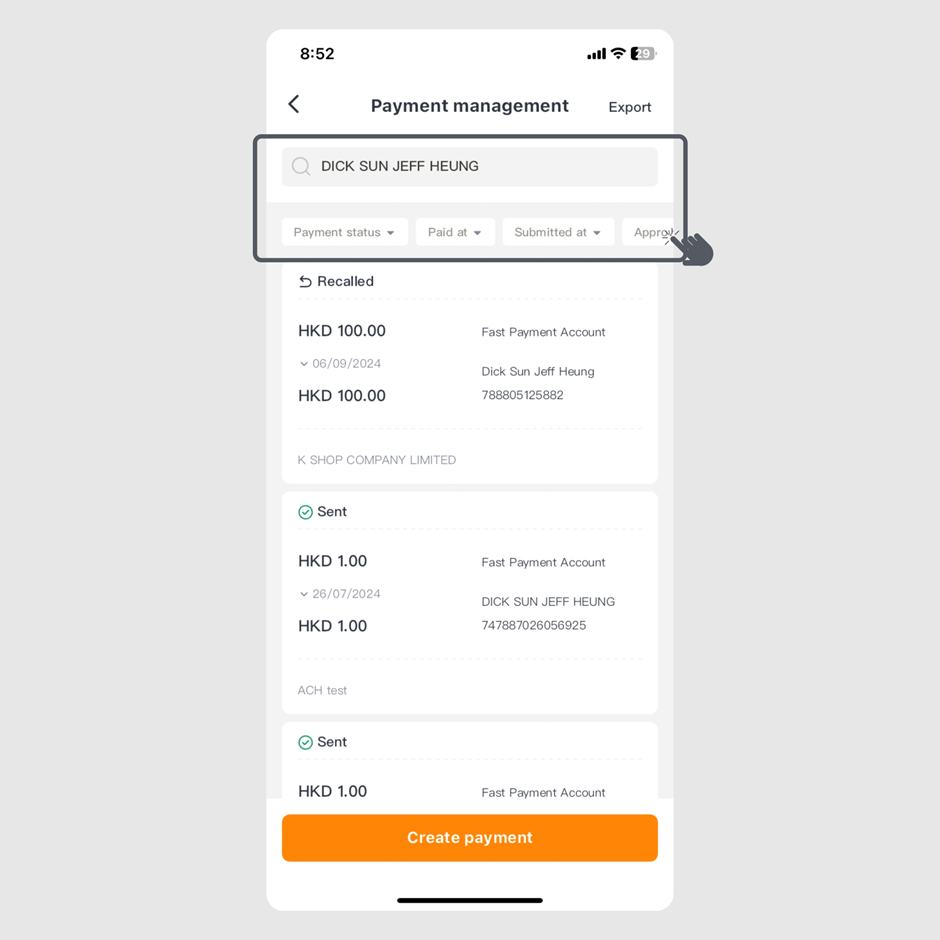
Step 3: To search specific records, filter by "Payment status," "Pay at," "Submitted at," "Approver," "Submitter," or “Payment Method.”
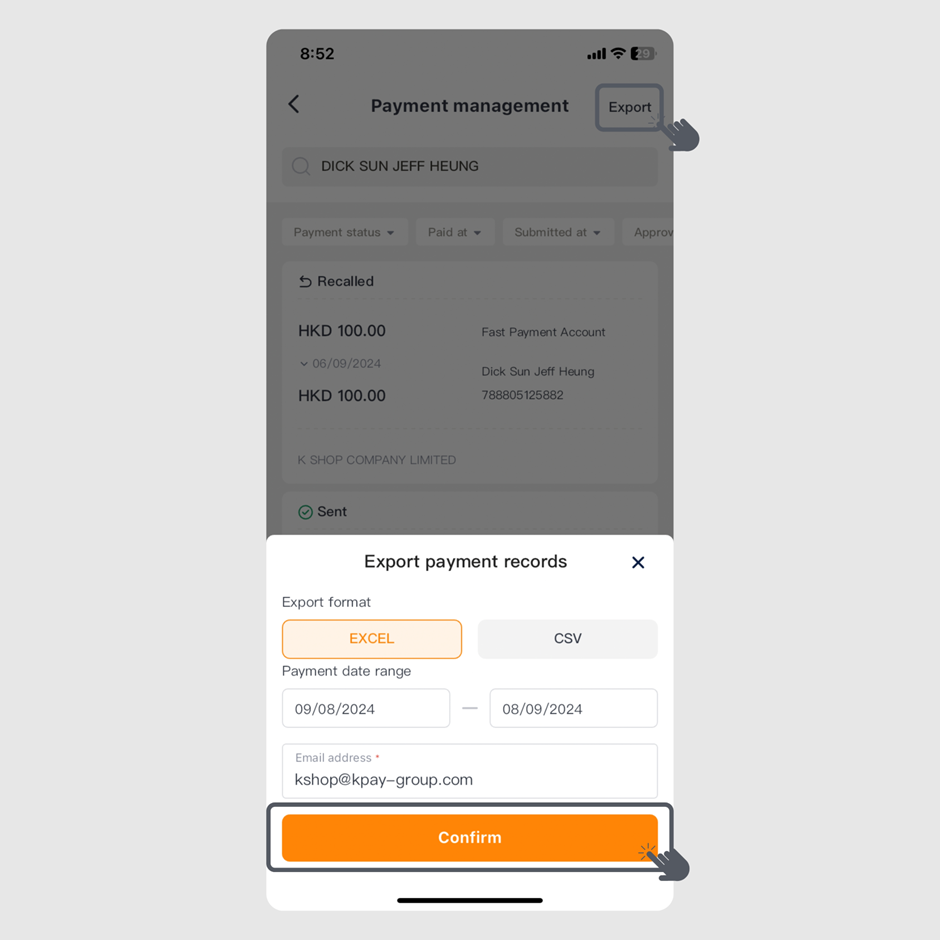
Step 4: Once you have the records, click "Export" in the top right, choose the format, payment date, and email address to send the records.
For any product-related inquiries, feel free to call our customer service team at 3706-7828 during office hours (Monday to Sunday, 10 AM - 10 PM). We are here to help!








%20(4).png)



.png)




.jpg)