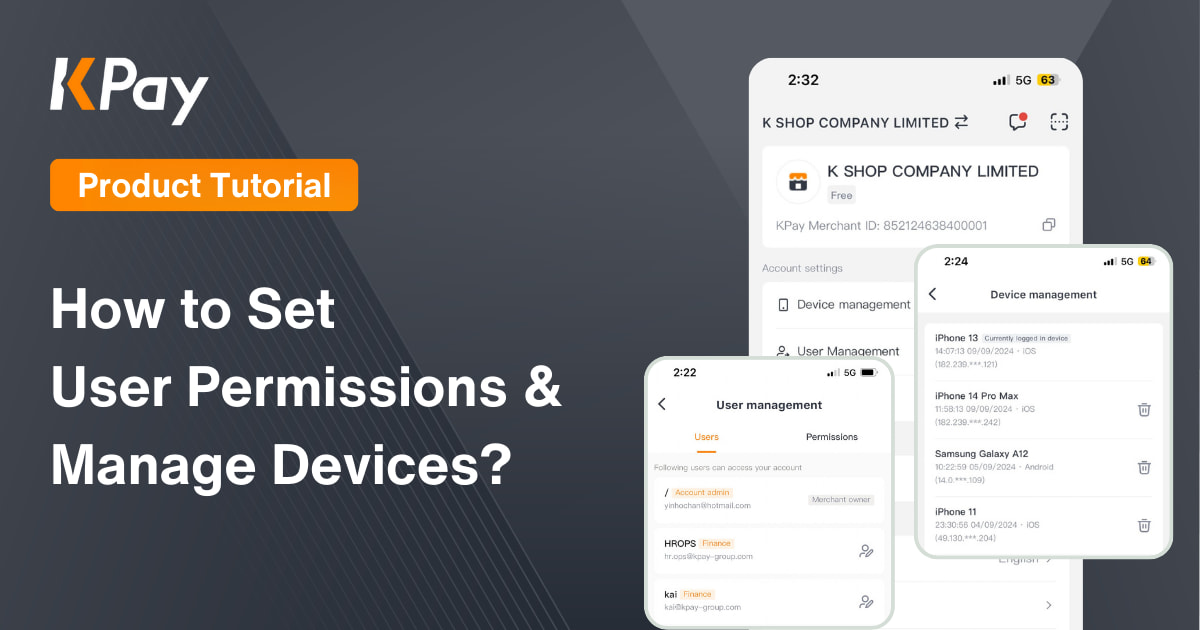
How to set up user permissions and manage login devices?
29 November 2024
7 min read
KPay Editorial Team
Making the complex sides of financial management, business operations and digital transformation simple. We share practical tips and local stories to help you run your business smarter and grow faster.
What are user permissions?
User permissions are used to manage the access levels of different employees regarding account information and operations. This ensures that financial and transaction data records are not easily leaked, safeguarding the security of account information and data. Permission management not only protects sensitive records but also enhances work efficiency and management transparency for the business. It allows each employee to access only the systems and data relevant to their responsibilities, thereby improving overall operational efficiency.
What are login devices?
Login devices refer to the various devices used to access the system. By managing login devices, businesses can track the number and information of devices that have logged in, preventing unauthorised devices from accessing the system and thus ensuring data security and system stability.
How to manage user permissions?
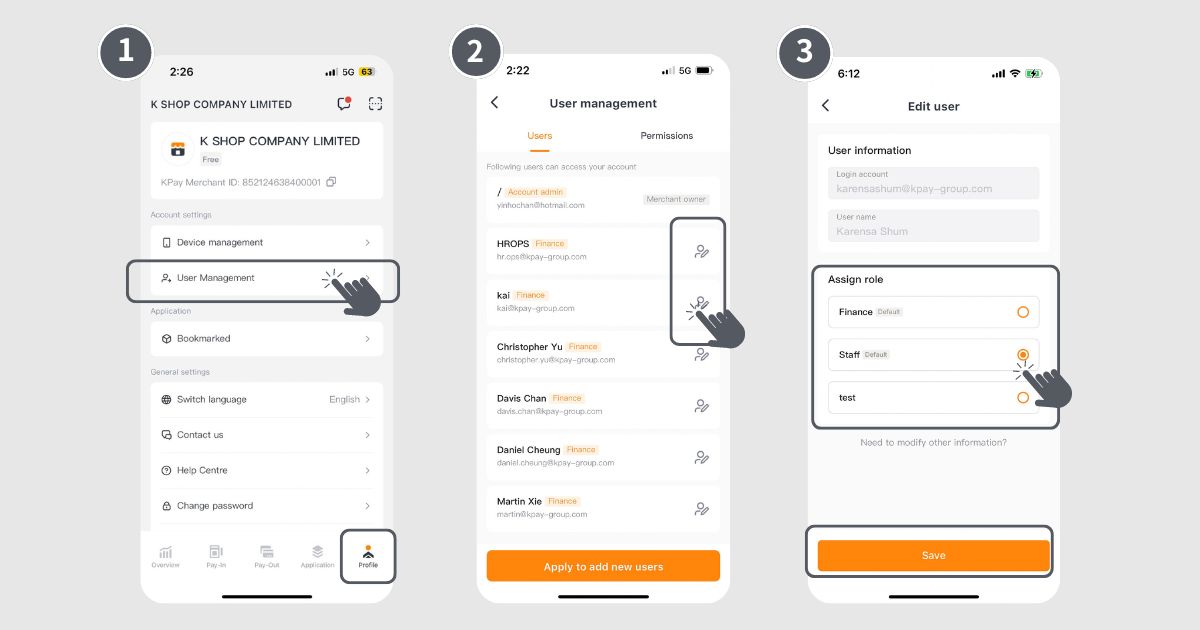
Step 1: Click "User Management" on the "Profile" page.
Step 2: In the page, select "User Management" to view the current user list, and edit permissions by clicking the icon next to each user.
Step 3: Choose the role to assign and save the options.
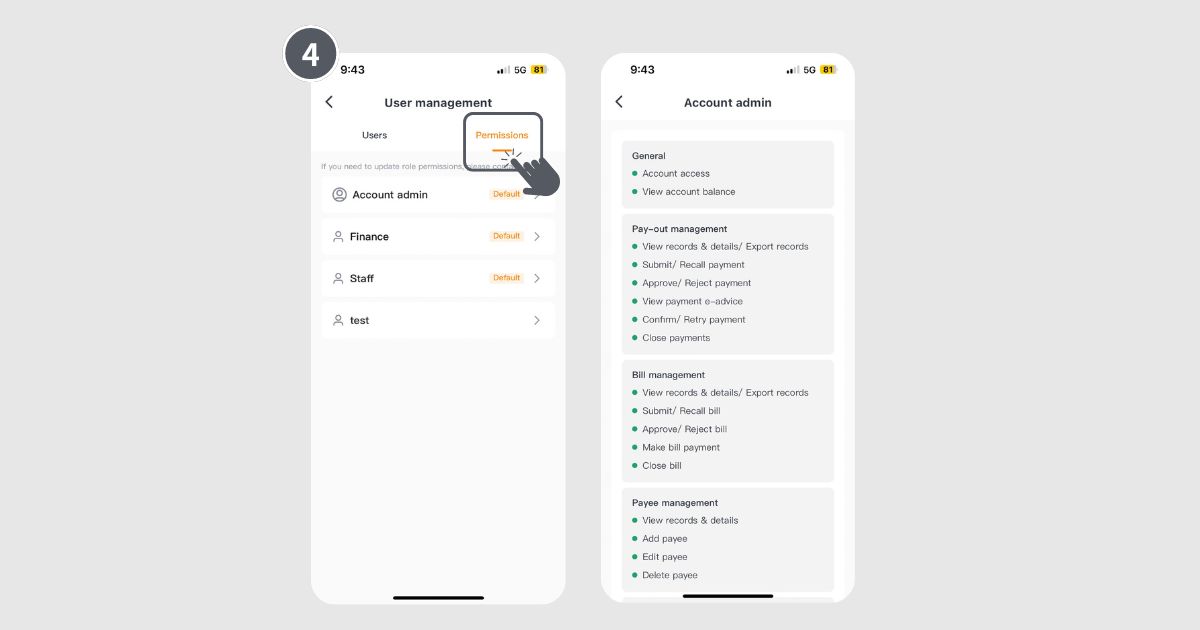
Step 4: To view detailed permission information for different user roles, select "Permissions" on the page. (If you wish to modify role permissions, please contact us.)
How to apply for additional users?
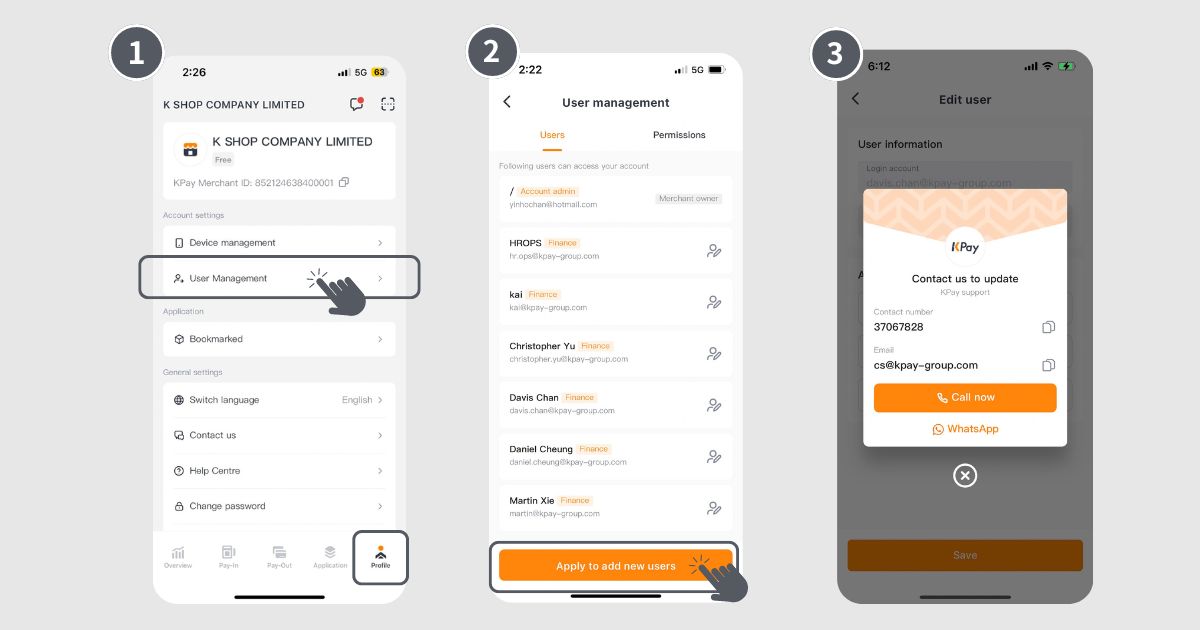
Step 1: Click "User Management" on the "Profile" page.
Step 2: Click "Apply to add new users" at the bottom to assign permissions.
Step 3: Contact the KPay customer service team.
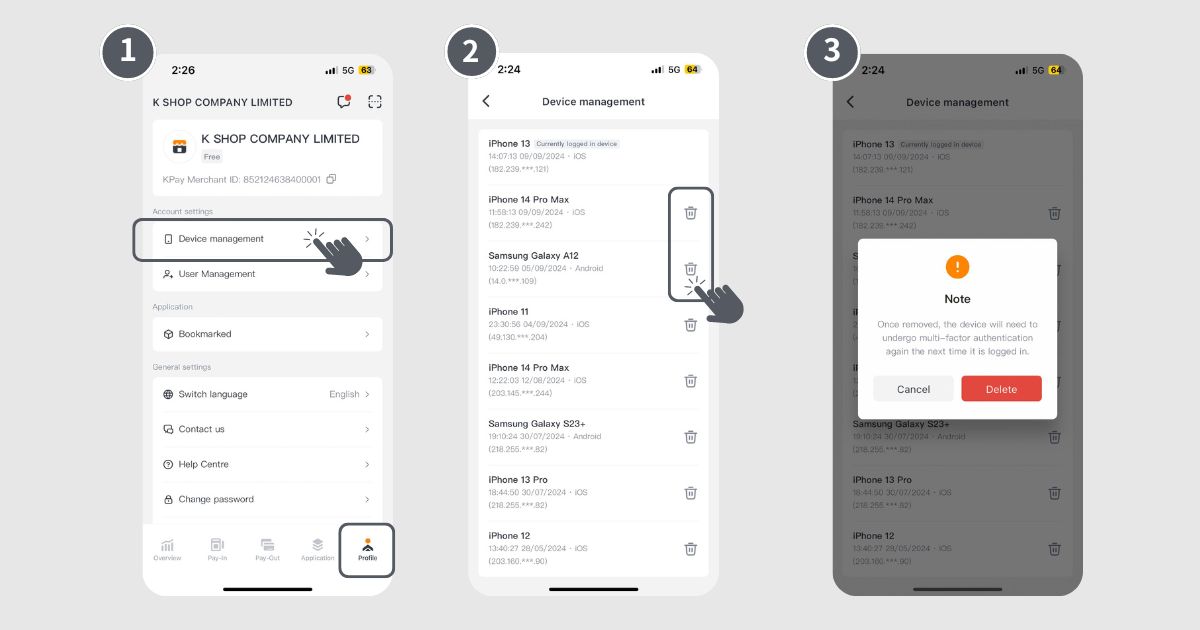
How to remove permissions for logged-in devices?
Step 1: Click "Device Management" on the "Profile" page.
Step 2: Review the logged-in devices on the page, and you can delete any device by clicking the icon next to it at any time.
Step 3: A prompt will appear before deletion for the merchant's confirmation.
For any product-related inquiries, feel free to call our customer service team at 3706-7828 during office hours (Monday to Sunday, 10 AM-10 PM). We are here to help!